
- ☆1Computer NetworkIP AddressWhat is IP? Why does need IP in every network?
An IP (Internet Protocol) is a unique logical address assigned to every device connected to a network. It is used to identify devices and enable communication between them over a network or the Internet.
Why Do We Need an IP Address in Every Network?
An IP Address is essential because it allows devices to communicate and exchange data correctly within a network.
• Uniquely identifies every device on the network.
• Enables data packets to reach the correct destination.
• Helps routers determine the best path for data transmission.
• Supports communication between devices on local networks and the Internet.
• Prevents data from being sent to the wrong device.Example
When a computer sends a request to a web server, the IP Address identifies both the sender and the receiver, ensuring that the data reaches the correct destination.
IP (Internet Protocol) হলো একটি Unique Logical Address, যা Network-এ সংযুক্ত প্রতিটি Device-কে প্রদান করা হয়। এটি Device-কে শনাক্ত (Identify) করে এবং Network বা Internet-এর মাধ্যমে এক Device থেকে অন্য Device-এ Data আদান-প্রদান নিশ্চিত করে।
প্রতিটি Network-এ IP Address কেন প্রয়োজন?
IP Address ছাড়া Network-এর Device-গুলো একে অপরকে শনাক্ত করতে এবং সঠিকভাবে যোগাযোগ করতে পারে না।
• প্রতিটি Device-কে Unique Identification প্রদান করে।
• Data Packet সঠিক Destination-এ পৌঁছাতে সাহায্য করে।
• Router-কে Data-এর সর্বোত্তম Path নির্ধারণ করতে সহায়তা করে।
• Local Network এবং Internet-এ Device-এর মধ্যে Communication নিশ্চিত করে।
• ভুল Device-এ Data পৌঁছানো প্রতিরোধ করে।উদাহরণ
যখন একটি Computer কোনো Web Server-এ Request পাঠায়, তখন IP Address Sender এবং Receiver উভয়কে শনাক্ত করে, ফলে Data সঠিক Destination-এ পৌঁছে যায়।
- ☆2Computer NetworkSwithcing Technique & ProtocolWhat is DHCP? How does it work? What is DHCP function?
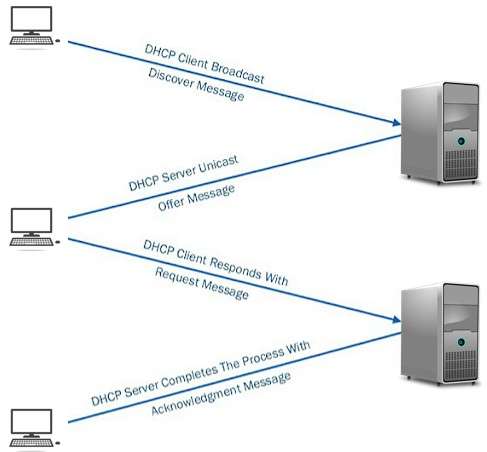
DHCP (Dynamic Host Configuration Protocol) is a network protocol that automatically assigns IP addresses and other network configuration details to devices connected to a network.
Step-by-Step Working of DHCP
Step 1: DHCP Discover
When a device connects to a network, it broadcasts a DHCP Discover message to find available DHCP servers.
Step 2: DHCP Offer
The DHCP server responds with a DHCP Offer message that contains an available IP address and configuration details.
Step 3: DHCP Request
The client selects one offer and sends a DHCP Request message to request the offered IP address.
Step 4: DHCP Acknowledgement (ACK)
The DHCP server sends a DHCP ACK message confirming the IP address assignment along with subnet mask, gateway, and DNS details.
Result
The client can now communicate on the network using the assigned IP address.
Example
When you connect your laptop to a Wi-Fi network, the router (DHCP server) automatically assigns an IP address to your laptop.

DHCP (Dynamic Host Configuration Protocol) হলো একটি network protocol যা স্বয়ংক্রিয়ভাবে device-কে IP address এবং অন্যান্য network configuration প্রদান করে।
DHCP কাজ করার ধাপসমূহ
Step 1: DHCP Discover
Network-এ যুক্ত হওয়ার সময় client একটি DHCP Discover message broadcast করে DHCP server খোঁজে।
Step 2: DHCP Offer
DHCP server একটি DHCP Offer পাঠায় যেখানে একটি available IP address ও configuration থাকে।
Step 3: DHCP Request
Client পছন্দের offer নির্বাচন করে DHCP Request message পাঠায়।
Step 4: DHCP Acknowledgement (ACK)
DHCP server DHCP ACK পাঠিয়ে IP address, subnet mask, gateway ও DNS নিশ্চিত করে।
ফলাফল
Client নির্ধারিত IP address ব্যবহার করে network-এ যোগাযোগ করতে পারে।
উদাহরণ
আপনি যখন Wi-Fi-তে laptop সংযোগ করেন, তখন router (DHCP server) স্বয়ংক্রিয়ভাবে IP address assign করে।
- ☆3Operating SystemBootingWrite about Boot Process.
The Boot Process is the sequence of steps a computer follows to start up after it is powered on or restarted. During this process, the hardware is initialized, the operating system is loaded into memory, and the computer becomes ready for use.
Steps of the Boot Process
1. Power On: The user turns on the computer, and the CPU begins executing instructions stored in the firmware (BIOS or UEFI).
2. POST (Power-On Self-Test): The BIOS/UEFI checks hardware components such as RAM, CPU, keyboard, storage devices, and other peripherals to ensure they are functioning correctly.
3. Boot Loader Execution: The Boot Loader (e.g., GRUB, Windows Boot Manager) is loaded from the bootable storage device.
4. Operating System Loading: The Boot Loader loads the Operating System Kernel into the main memory (RAM).
5. Kernel Initialization: The Kernel initializes device drivers, memory management, file systems, and other essential system services.
6. User Login: The operating system starts system services and displays the login screen or desktop, making the computer ready for use.
Boot Process হলো Computer চালু (Power On) বা Restart হওয়ার পর ধাপে ধাপে সম্পন্ন হওয়া একটি Process, যার মাধ্যমে Hardware Initialize হয়, Operating System (OS) Memory-তে Load হয় এবং Computer ব্যবহার উপযোগী হয়ে ওঠে।
Boot Process-এর ধাপসমূহ
১. Power On: User Computer চালু করলে CPU Firmware (BIOS বা UEFI)-এ সংরক্ষিত Instruction Execute করা শুরু করে।
২. POST (Power-On Self-Test): BIOS/UEFI RAM, CPU, Keyboard, Storage Device এবং অন্যান্য Hardware সঠিকভাবে কাজ করছে কিনা তা পরীক্ষা করে।
৩. Boot Loader Execution: Bootable Storage Device থেকে Boot Loader (যেমন: GRUB বা Windows Boot Manager) Load হয়।
৪. Operating System Loading: Boot Loader Operating System Kernel-কে RAM-এ Load করে।
৫. Kernel Initialization: Kernel Device Driver, Memory Management, File System এবং অন্যান্য System Service Initialize করে।
৬. User Login: Operating System প্রয়োজনীয় Service চালু করে Login Screen বা Desktop প্রদর্শন করে এবং Computer ব্যবহারের জন্য প্রস্তুত হয়।
- ☆4Operating SystemProcesses ManagementWhat hyper-threading is and its uses?
Hyper-Threading (HT) is a technology developed by Intel that allows a single physical CPU core to function as two logical (virtual) cores. This enables the processor to execute multiple threads simultaneously, improving CPU utilization and overall system performance.
How Does Hyper-Threading Work?
In Hyper-Threading, each physical CPU core appears as two logical processors to the Operating System. When one thread is waiting for data or resources, the CPU can execute another thread, reducing idle time and increasing efficiency.
Uses of Hyper-Threading
• Improves multitasking performance by running multiple threads simultaneously.
• Increases CPU utilization and overall system efficiency.
• Enhances the performance of multi-threaded applications such as video editing, 3D rendering, and software development.
• Improves virtualization by allowing more virtual machines to run efficiently.
• Reduces CPU idle time by executing another thread while one thread is waiting.
Hyper-Threading (HT) হলো Intel কর্তৃক উন্নয়নকৃত একটি Technology, যা একটি Physical CPU Core-কে দুটি Logical (Virtual) Core হিসেবে কাজ করার সুযোগ দেয়। এর ফলে Processor একই সময়ে একাধিক Thread Execute করতে পারে এবং System-এর Performance বৃদ্ধি পায়।
Hyper-Threading কীভাবে কাজ করে?
Hyper-Threading-এ প্রতিটি Physical Core, Operating System-এর কাছে দুটি Logical Processor হিসেবে দেখা যায়। যখন একটি Thread Data বা Resource-এর জন্য অপেক্ষা করে, তখন CPU অন্য একটি Thread Execute করে। এতে CPU-এর Idle Time কমে এবং Efficiency বৃদ্ধি পায়।
Hyper-Threading-এর ব্যবহার
• একই সময়ে একাধিক Thread চালিয়ে Multitasking Performance বৃদ্ধি করে।
• CPU-এর Resource আরও দক্ষতার সাথে ব্যবহার করে।
• Video Editing, 3D Rendering, Software Development এবং অন্যান্য Multi-threaded Application-এর Performance উন্নত করে।
• Virtualization-এ একাধিক Virtual Machine আরও দক্ষভাবে চালাতে সহায়তা করে।
• একটি Thread অপেক্ষমাণ থাকলে অন্য Thread Execute করে CPU-এর Idle Time কমায়।
- ☆5MiscellaneousWrite difference between SAS and SATA Drive
Difference Between SAS and SATA Drive
Feature SAS (Serial Attached SCSI) SATA (Serial ATA) Purpose Mainly used in Enterprise Servers and Data Centers. Mainly used in Personal Computers and Laptops. Performance Higher performance and faster data transfer. Moderate performance compared to SAS. Speed Up to 12 Gbps (or higher in newer versions). Up to 6 Gbps (SATA III). Reliability Very high reliability and designed for 24×7 operation. Good reliability for general-purpose use. Cost More expensive. Less expensive. Capacity Usually lower storage capacity but optimized for performance. Generally available in larger storage capacities. Duplex Mode Supports Full-Duplex communication. Supports Half-Duplex communication. Applications Servers, Enterprise Storage, Database Systems. Desktop PCs, Laptops, Personal Storage.
বৈশিষ্ট্য SAS (Serial Attached SCSI) SATA (Serial ATA) ব্যবহার মূলত Enterprise Server এবং Data Center-এ ব্যবহৃত হয়। মূলত Personal Computer এবং Laptop-এ ব্যবহৃত হয়। Performance উচ্চ Performance এবং দ্রুত Data Transfer প্রদান করে। SAS-এর তুলনায় কম Performance প্রদান করে। Speed সর্বোচ্চ 12 Gbps (বা নতুন Version-এ আরও বেশি)। সর্বোচ্চ 6 Gbps (SATA III)। Reliability খুবই নির্ভরযোগ্য এবং ২৪×৭ Operation-এর জন্য উপযোগী। সাধারণ ব্যবহারের জন্য যথেষ্ট নির্ভরযোগ্য। খরচ তুলনামূলকভাবে বেশি ব্যয়বহুল। তুলনামূলকভাবে কম ব্যয়বহুল। Storage Capacity সাধারণত কম Capacity হলেও Performance-কেন্দ্রিক। সাধারণত বেশি Storage Capacity পাওয়া যায়। Communication Mode Full-Duplex Communication সমর্থন করে। Half-Duplex Communication সমর্থন করে। Application Server, Enterprise Storage এবং Database System-এ ব্যবহৃত হয়। Desktop PC, Laptop এবং Personal Storage-এ ব্যবহৃত হয়।
- ☆6Data Center & VirtualizationSuppose you have to decorate a lab in one physical server with services website, mobile application, webmail etc. Which devices or services will you use to decorate the lab? How will this help you? And how will you get all services from one physical server?
To host multiple services such as a Website, Mobile Application, Webmail, Database, and other applications on a single physical server, I would use Virtualization Technology.
Devices and Services Required
• One high-performance Physical Server.
• Hypervisor (VMware ESXi, Microsoft Hyper-V, Proxmox VE, or KVM).
• Multiple Virtual Machines (VMs).
• Web Server (Apache or Nginx).
• Application Server.
• Database Server (MySQL or PostgreSQL).
• Mail Server (Postfix, Dovecot, or Microsoft Exchange).
• DNS Server.
• Firewall and Network Switch.
• Backup and Monitoring tools.How Can All Services Run on One Physical Server?
A Hypervisor is installed on the physical server to create multiple Virtual Machines (VMs). Each VM acts as an independent server with its own Operating System and resources. Different services are deployed on separate VMs, allowing all services to run simultaneously on a single physical server.
Example
• VM1 – Website Server (Apache/Nginx).
• VM2 – Database Server (MySQL/PostgreSQL).
• VM3 – Webmail Server (Postfix/Dovecot).
• VM4 – Mobile Application Backend Server.
• VM5 – DNS Server.Advantages
• Better utilization of hardware resources.
• Lower hardware and maintenance costs.
• Easy management and backup.
• Better security by isolating services in different Virtual Machines.
• High scalability and flexibility.
• Easy recovery in case of system failure.
প্রশ্ন: একটি Physical Server ব্যবহার করে Website, Mobile Application, Webmail ইত্যাদি Service সমন্বয়ে একটি Lab তৈরি করতে হবে। কোন Device বা Service ব্যবহার করবেন? এটি কীভাবে সাহায্য করবে? এবং কীভাবে একটি Physical Server থেকে সব Service চালানো সম্ভব?
উত্তর:
একটি Physical Server-এ Website, Mobile Application, Webmail, Database এবং অন্যান্য Service একসাথে চালানোর জন্য আমি Virtualization Technology ব্যবহার করব।
প্রয়োজনীয় Device এবং Service
• একটি উচ্চ ক্ষমতাসম্পন্ন Physical Server।
• একটি Hypervisor (VMware ESXi, Microsoft Hyper-V, Proxmox VE অথবা KVM)।
• একাধিক Virtual Machine (VM)।
• Web Server (Apache বা Nginx)।
• Application Server।
• Database Server (MySQL বা PostgreSQL)।
• Mail Server (Postfix, Dovecot বা Microsoft Exchange)।
• DNS Server।
• Firewall এবং Network Switch।
• Backup এবং Monitoring Tool।কীভাবে একটি Physical Server-এ সব Service চালানো সম্ভব?
প্রথমে Physical Server-এ একটি Hypervisor Install করা হয়। এরপর Hypervisor-এর মাধ্যমে একাধিক Virtual Machine (VM) তৈরি করা হয়। প্রতিটি VM একটি আলাদা Server-এর মতো কাজ করে এবং নিজস্ব Operating System ও Resource ব্যবহার করে। এরপর প্রতিটি VM-এ আলাদা Service Install করা হয়, ফলে একই Physical Server-এ একাধিক Service নিরাপদভাবে এবং স্বাধীনভাবে চলতে পারে।
উদাহরণ
• VM1 – Website Server (Apache/Nginx)।
• VM2 – Database Server (MySQL/PostgreSQL)।
• VM3 – Webmail Server (Postfix/Dovecot)।
• VM4 – Mobile Application Backend Server।
• VM5 – DNS Server।সুবিধা
• Hardware Resource-এর সর্বোত্তম ব্যবহার নিশ্চিত করে।
• Hardware ও Maintenance Cost কমায়।
• Backup এবং Management সহজ হয়।
• প্রতিটি Service আলাদা Virtual Machine-এ থাকায় Security বৃদ্ধি পায়।
• প্রয়োজন অনুযায়ী সহজে নতুন Service যোগ করা যায় (Scalability)।
• কোনো একটি VM সমস্যায় পড়লেও অন্যান্য Service সচল থাকে।
Five MCQ: 2 × 5 = 10
1. Which among the following is the fastest memory in a computer that holds information?
(a) Register (b) Cache
(c) Main Memory
(d) RAM
Answer: (a) Register
Explanation:
Information is moved from memory to registers and then passed to the ALU for performing arithmetic and logical operations. Registers are the fastest memory inside a computer.
2. Which of the following is temporary storage used to hold data that is used for arithmetic and logical operations and storing its results?
(a) ALU
(b) Program Counter (PC)
(c) Accumulator
(d) Instruction Register (IR)
Answer: (c) Accumulator
Explanation:
The ALU contains a set of general-purpose registers. The Accumulator is used to temporarily store data and the results of arithmetic and logical operations.
3. A hard disk is divided into tracks which are further subdivided into ______.
(a) Vectors
(b) Clusters
(c) Sectors
(d) None of the above
Answer: (c) Sectors
4. The Expansion cards are inserted into ______.
(a) Slots of CPU (Motherboard Expansion Slots)
(b) Hard Disk of CPU
(c) Peripheral Devices
(d) None of the above
Answer: (a) Slots of CPU
5. A system has two IDE hard drives that are each divided into primary and extended partitions. Which drive letter is assigned to the primary partition of the second drive?
(a) C
(b) D
(c) E
(d) F
Answer: (b) D