Pubali Bank, Software Quality Assurance, 2023
- 1Data Center & VirtualizationTestingDefine test plan and Test case.
A Test Plan is a formal document that defines the testing strategy, objectives, scope, resources, schedule, and activities required to test a software application. It serves as a roadmap for the testing process and ensures that all testing activities are carried out systematically.
Contents of a Test Plan
• Testing objectives and scope.
• Testing strategy and approach.
• Resources and responsibilities.
• Test schedule and milestones.
• Entry and exit criteria.
• Risks and assumptions.What is a Test Case?
A Test Case is a document that describes a specific scenario to verify whether a particular feature or function of a software application works as expected. It contains the input data, execution steps, expected result, and actual result.
Contents of a Test Case
• Test Case ID.
• Test Scenario or Description.
• Preconditions.
• Test Steps.
• Input Data.
• Expected Result.
• Actual Result.
• Pass/Fail Status.
Test Plan হলো একটি আনুষ্ঠানিক Document, যেখানে Software Testing-এর Strategy, Objective, Scope, Resource, Schedule এবং বিভিন্ন Testing Activity বর্ণনা করা থাকে। এটি পুরো Testing Process-এর জন্য একটি Roadmap হিসেবে কাজ করে।
Test Plan-এর প্রধান বিষয়বস্তু
• Testing-এর Objective এবং Scope।
• Testing Strategy এবং Approach।
• Resource এবং দায়িত্ব বণ্টন।
• Test Schedule এবং Milestone।
• Entry Criteria এবং Exit Criteria।
• Risk এবং Assumption।Test Case কী?
উত্তর:
Test Case হলো একটি Document, যেখানে Software-এর নির্দিষ্ট Feature বা Function সঠিকভাবে কাজ করছে কিনা তা যাচাই করার জন্য নির্দিষ্ট Test Scenario, Input, Execution Step এবং Expected Result উল্লেখ থাকে।
Test Case-এর প্রধান বিষয়বস্তু
• Test Case ID।
• Test Scenario বা Description।
• Preconditions।
• Test Steps।
• Input Data।
• Expected Result।
• Actual Result।
• Pass/Fail Status।উদাহরণ
Test Case: User Login যাচাই করা।
Input: সঠিক Username এবং Password।
Expected Result: User সফলভাবে System-এ Login করবে।
- 2Software EngineeringTestingWrite difference between Verification and Validation.
Difference Between Verification and Validation
Verification Validation Verification checks whether the software is built according to the specified requirements. Validation checks whether the software meets the user's needs and expectations. It answers the question: "Are we building the product right?" It answers the question: "Are we building the right product?" Performed during the development phase. Performed after the software is developed or during testing. Does not require executing the software. Requires executing the software. Uses techniques such as Review, Inspection, and Walkthrough. Uses techniques such as Functional Testing, System Testing, and User Acceptance Testing (UAT). Focuses on finding defects in design and documents. Focuses on finding defects in the actual software product. It is a Static Testing process. It is a Dynamic Testing process. Example
Verification: Reviewing the Software Design Document to ensure it follows the requirements.
Validation: Running the software to verify that the login functionality works correctly for users.
Verification এবং Validation-এর মধ্যে পার্থক্য
Verification Validation Software নির্ধারিত Requirement অনুযায়ী তৈরি হয়েছে কিনা তা যাচাই করে। Software ব্যবহারকারীর Need এবং Expectation পূরণ করছে কিনা তা যাচাই করে। প্রশ্নের উত্তর দেয়: "Are we building the product right?" প্রশ্নের উত্তর দেয়: "Are we building the right product?" Development Phase-এ সম্পন্ন হয়। Software তৈরি হওয়ার পরে বা Testing-এর সময় সম্পন্ন হয়। Software Execute করার প্রয়োজন হয় না। Software Execute করে পরীক্ষা করা হয়। Review, Inspection এবং Walkthrough ব্যবহার করা হয়। Functional Testing, System Testing এবং User Acceptance Testing (UAT) ব্যবহার করা হয়। Design এবং Document-এর ত্রুটি শনাক্ত করার উপর গুরুত্ব দেয়। চলমান Software-এর ত্রুটি শনাক্ত করার উপর গুরুত্ব দেয়। এটি একটি Static Testing Process। এটি একটি Dynamic Testing Process। উদাহরণ
Verification: Software Design Document Review করে Requirement সঠিকভাবে অনুসরণ করা হয়েছে কিনা যাচাই করা।
Validation: Software চালিয়ে Login Function সঠিকভাবে কাজ করছে কিনা পরীক্ষা করা।
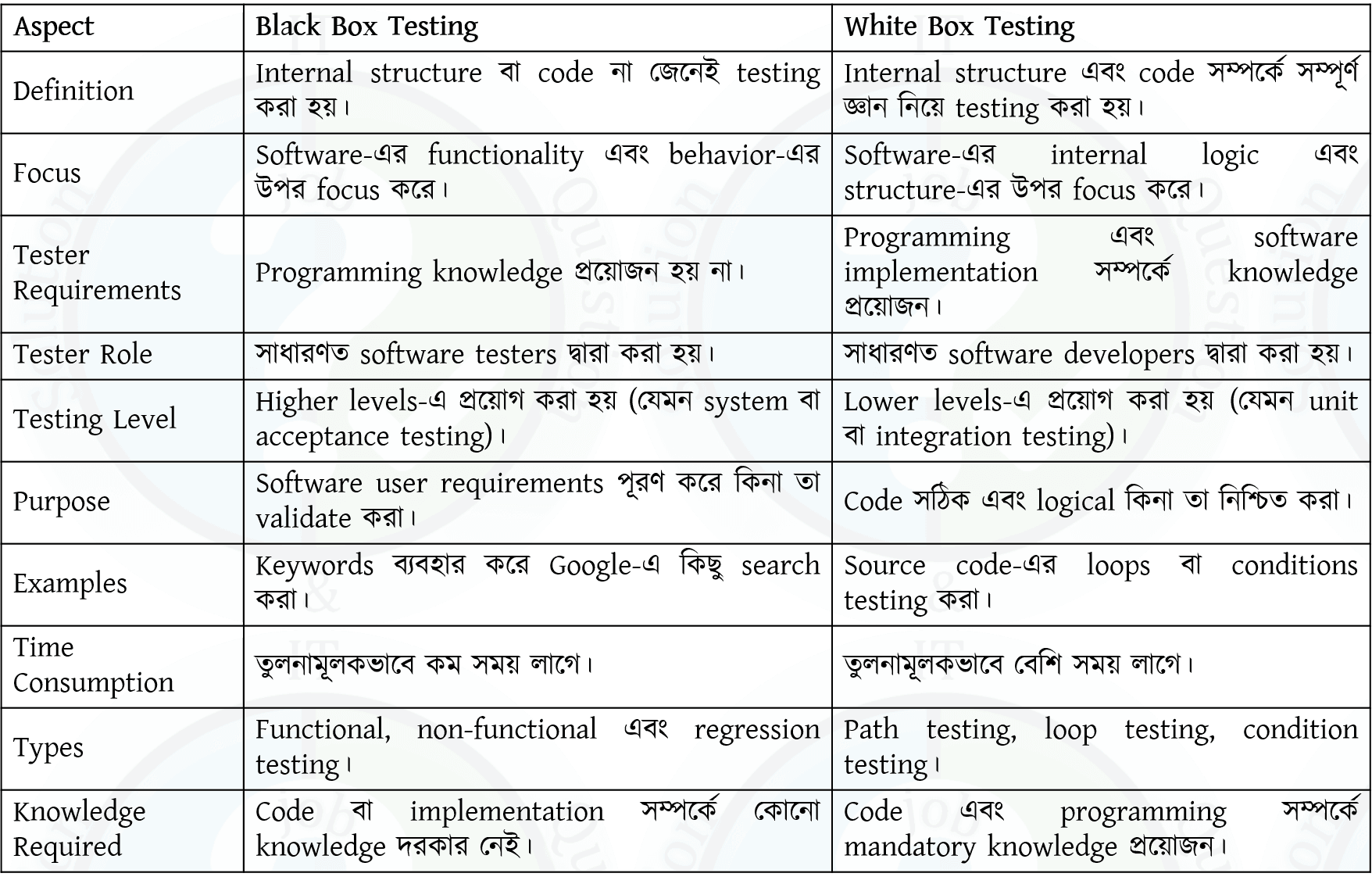
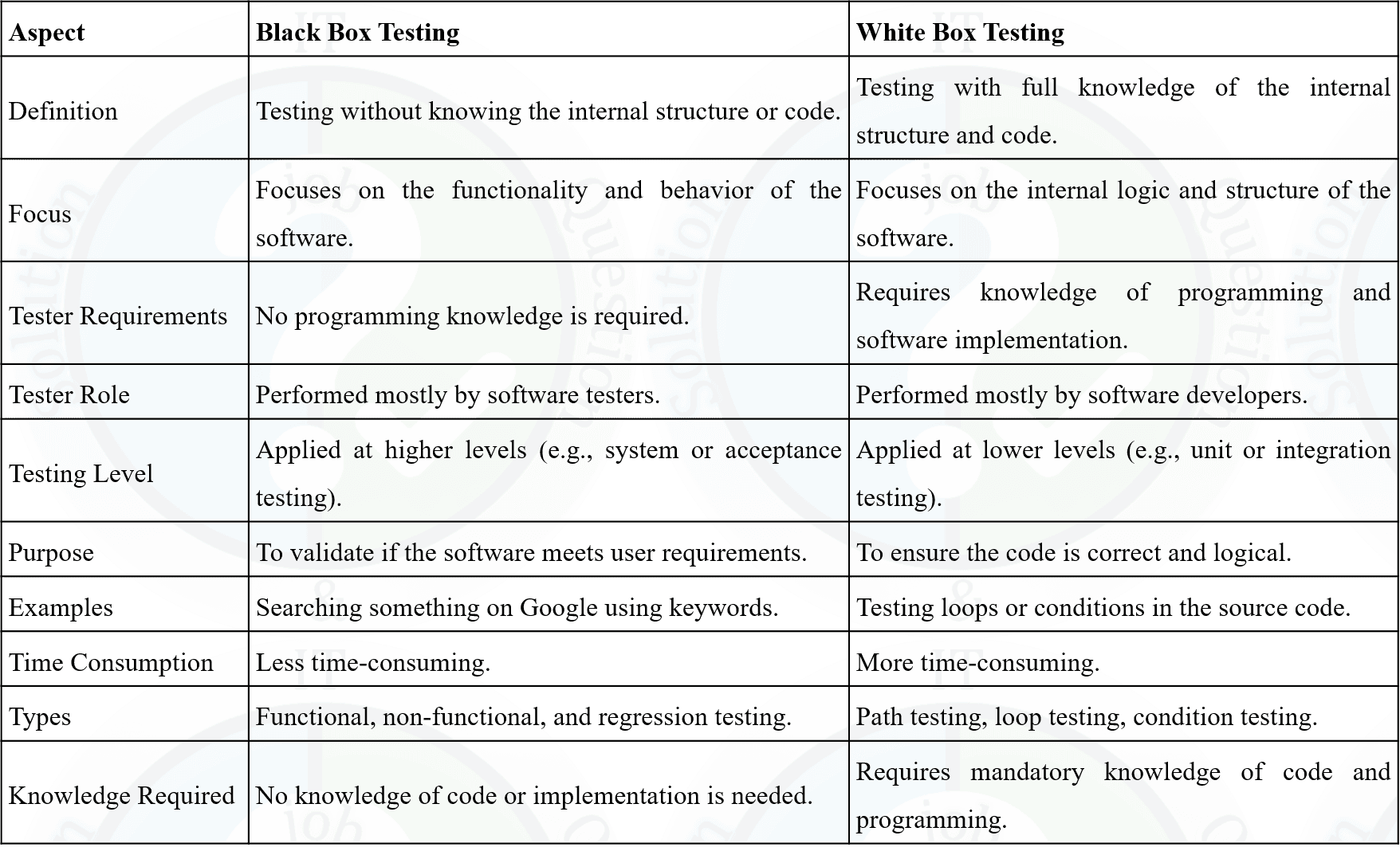
- 3Software EngineeringTestingDifference between White Box testing and Black Box testing.

- 4Software EngineeringTestingWhat is defect report? Define test harness?
A Defect Report (also called a Bug Report) is a document used to record and track defects found during software testing. It provides complete information about the defect so that developers can identify, fix, and verify the issue efficiently.
Contents of a Defect Report
• Defect ID.
• Defect Summary or Title.
• Description of the defect.
• Steps to reproduce the defect.
• Expected Result.
• Actual Result.
• Severity and Priority.
• Status (Open, Fixed, Closed, etc.).
• Reporter and Assigned Developer.Example
If a user enters a valid username and password but cannot log in, the tester records the issue in a Defect Report with all necessary details.
What is a Test Harness?
Answer:
A Test Harness is a collection of software, test data, Test Drivers, and Test Stubs used to execute and test a software component automatically. It provides an environment for running tests and comparing the actual results with the expected results.
Components of a Test Harness
• Test Driver.
• Test Stub.
• Test Data.
• Test Scripts.
• Result Comparison and Reporting Tools.Example
During Unit Testing, a Test Harness uses a Test Driver to call a function and a Test Stub to simulate dependent modules, then compares the actual output with the expected output.
Defect Report (বা Bug Report) হলো একটি Document, যেখানে Software Testing-এর সময় পাওয়া ত্রুটির (Defect) বিস্তারিত তথ্য সংরক্ষণ করা হয়। এটি Developer-কে সমস্যা শনাক্ত, সমাধান এবং পুনরায় যাচাই করতে সাহায্য করে।
Defect Report-এর প্রধান বিষয়বস্তু
• Defect ID।
• Defect Summary বা Title।
• Defect-এর Description।
• Defect পুনরায় তৈরি করার Step (Steps to Reproduce)।
• Expected Result।
• Actual Result।
• Severity এবং Priority।
• Status (Open, Fixed, Closed ইত্যাদি)।
• Reporter এবং Assigned Developer।উদাহরণ
যদি কোনো User সঠিক Username এবং Password দেওয়ার পরও Login করতে না পারে, তাহলে Tester সেই সমস্যাটি Defect Report-এ সকল প্রয়োজনীয় তথ্যসহ লিপিবদ্ধ করবে।
Test Harness কী?
উত্তর:
Test Harness হলো Software, Test Data, Test Driver এবং Test Stub-এর সমন্বয়ে গঠিত একটি Testing Environment, যা কোনো Software Component-কে স্বয়ংক্রিয়ভাবে Test করতে ব্যবহৃত হয়। এটি Actual Result এবং Expected Result তুলনা করে Test-এর ফলাফল নির্ণয় করে।
Test Harness-এর উপাদান
• Test Driver।
• Test Stub।
• Test Data।
• Test Script।
• Result Comparison এবং Reporting Tool।উদাহরণ
Unit Testing-এর সময় একটি Test Harness, Test Driver ব্যবহার করে Function Call করে এবং Test Stub ব্যবহার করে নির্ভরশীল Module-এর আচরণ অনুকরণ (Simulate) করে। এরপর Expected Result-এর সাথে Actual Result তুলনা করে Test-এর ফলাফল নির্ধারণ করে।
- 5Software EngineeringTestingDescribes different Cycle of STLC.
Software Testing Life Cycle (STLC) is a sequence of activities performed during the software testing process to ensure that the software meets the specified quality requirements. Each phase has specific objectives and deliverables.
Phases of STLC
1. Requirement Analysis
The testing team analyzes the software requirements to identify testable requirements, testing scope, and possible risks.2. Test Planning
A Test Plan is prepared, which defines the testing strategy, resources, schedule, tools, responsibilities, and estimated effort.3. Test Case Development
Testers design Test Cases, prepare Test Data, and review them to ensure complete test coverage.4. Test Environment Setup
The required hardware, software, network, database, and testing tools are configured to create the testing environment.5. Test Execution
The prepared Test Cases are executed. The actual results are compared with the expected results, and any defects found are reported.6. Defect Reporting and Tracking
Detected defects are recorded in a Defect Report, assigned to developers, fixed, and retested until they are resolved.7. Test Closure
Testing activities are completed, test reports are prepared, lessons learned are documented, and the testing process is formally closed.
Software Testing Life Cycle (STLC) হলো Software Testing-এর একটি ধারাবাহিক Process, যেখানে বিভিন্ন ধাপে Testing সম্পন্ন করে Software-এর Quality নিশ্চিত করা হয়। প্রতিটি Phase-এর নির্দিষ্ট Objective এবং Deliverable থাকে।
STLC-এর ধাপসমূহ
১. Requirement Analysis
এই ধাপে Testing Team Software Requirement বিশ্লেষণ করে Testable Requirement, Testing Scope এবং সম্ভাব্য Risk নির্ধারণ করে।২. Test Planning
এই ধাপে একটি Test Plan তৈরি করা হয়, যেখানে Testing Strategy, Resource, Schedule, Tool, Responsibility এবং Estimated Effort নির্ধারণ করা হয়।৩. Test Case Development
এই ধাপে Test Case, Test Data প্রস্তুত করা হয় এবং Review-এর মাধ্যমে সেগুলো যাচাই করা হয়।৪. Test Environment Setup
Testing-এর জন্য প্রয়োজনীয় Hardware, Software, Network, Database এবং Testing Tool Configure করা হয়।৫. Test Execution
প্রস্তুতকৃত Test Case Execute করা হয়। Actual Result এবং Expected Result তুলনা করে Defect শনাক্ত করা হয়।৬. Defect Reporting and Tracking
শনাক্ত হওয়া Defect একটি Defect Report-এ সংরক্ষণ করা হয়, Developer-এর কাছে পাঠানো হয়, Fix করার পরে পুনরায় Retest করা হয়।৭. Test Closure
Testing সম্পন্ন হওয়ার পরে Test Report তৈরি করা হয়, অভিজ্ঞতা (Lessons Learned) সংরক্ষণ করা হয় এবং Testing আনুষ্ঠানিকভাবে সমাপ্ত করা হয়।
- 6Programming ConceptAnswer the following question from the below code:
int fibo (int x, int y)
{
int A = 0; if (x>0&& y<20 {
A = 1 ; }
if ( x = = 10) {
return A; }
return 0;
}
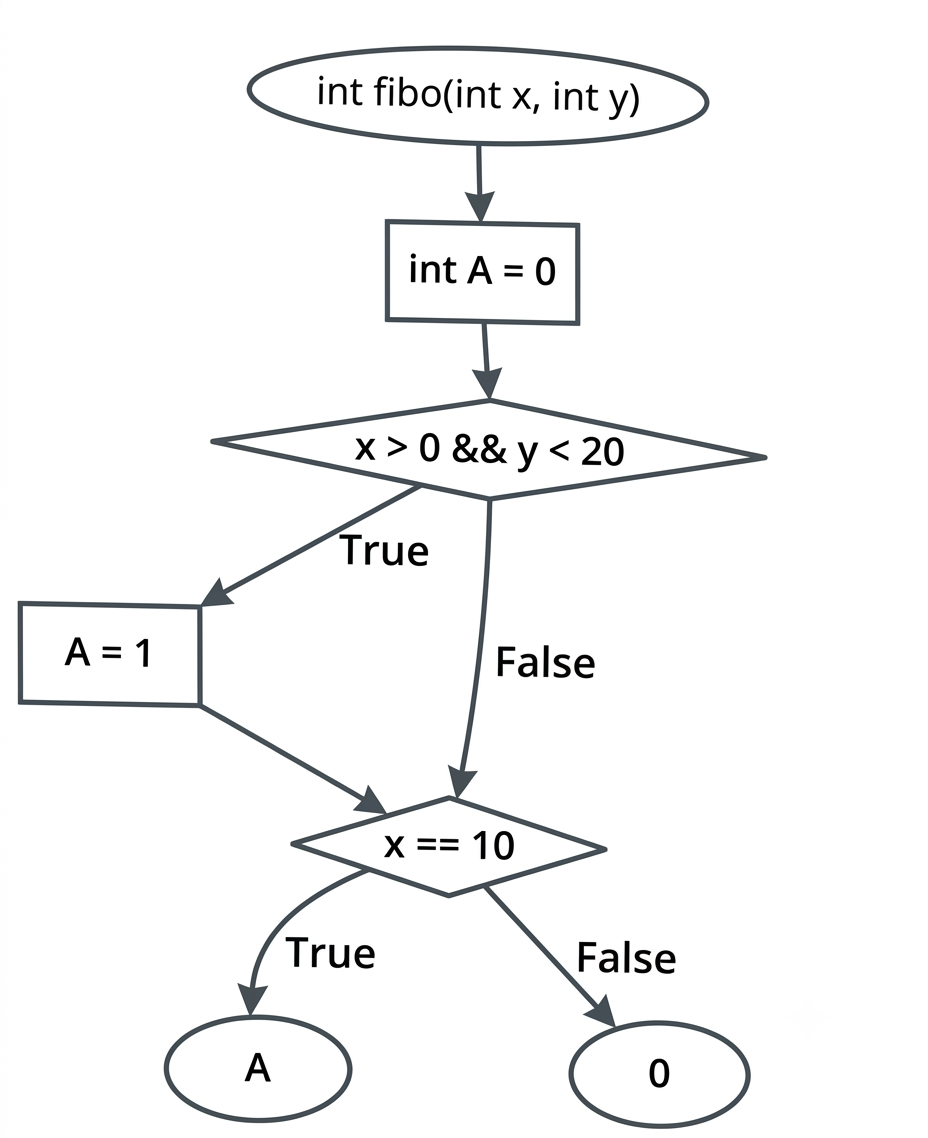
(i) Draw the flowchart based on above code
(ii) How many conditions are in this code?
(iii) Finding the possible path.(i) Answer:
(ii) Answer: There are two conditions in the code:
(a) The first condition is x> 0 && y <20
(b) The second condition is x=10
(iii) Answer:
(iii) Finding the possible path. There are two possible paths through the code: (a) If x>0&&y<20 is true and x is not equal to 10, the function returns 0.
(b) If x> 0 && y 0 && y < 20 is false, the function also returns 0.
1. ______ is a type of software testing where a group of individuals, usually from within the organization, use the software in a simulated or controlled environment to uncover defects.
(a) Alpha Testing
(b) User Acceptance Testing
(c) Beta Testing
(d) Regression Testing
Answer: (a) Alpha Testing
Explanation:
Alpha Testing is a type of software testing where a group of individuals, usually from within the organization, use the software in a simulated or controlled environment to uncover defects. It is typically performed before Beta Testing to identify and fix issues before the software is released to a larger audience.
2. Which of the following testing techniques includes how well the user will understand and interact with the system?
(a) Alpha Testing
(b) User Acceptance Testing
(c) Beta Testing
(d) Usability Testing
Answer: (d) Usability Testing
Explanation:
Usability Testing evaluates the user-friendliness, efficiency, and ease of use of an application. It ensures that end users can interact with the software effectively without difficulty.
3. ______ testing is a testing technique where the actual data is verified in the real environment.
(a) Regression Testing
(b) Alpha Testing
(c) Beta Testing
(d) None of the above
Answer: (c) Beta Testing
Explanation:
Beta Testing is performed by real users in a real environment after the software testing life cycle. It helps evaluate the application's functionality, usability, accessibility, and overall user experience before its official release.
4. Which of the following testing is related to Non-functional testing?
(a) Unit Testing
(b) Black-box Testing
(c) Performance Testing
(d) None of the above
Answer: (c) Performance Testing
Explanation:
Performance Testing is a type of Non-functional Testing that evaluates how an application behaves under different workloads. It measures factors such as speed, scalability, reliability, and responsiveness.
5. Which of the following testing is also called Acceptance Testing?
(a) Beta Testing
(b) White Box Testing
(c) Grey Box Testing
(d) Alpha Testing
Answer: (a) Beta Testing
Explanation:
Beta Testing is an important part of Acceptance Testing. It is conducted by actual users before the software is officially released to ensure that the application meets user requirements and expectations.
Pubali Bank, Junior Hardware Engineer, 2023
- 1Computer NetworkIP AddressWhat is IP? Why does need IP in every network?
An IP (Internet Protocol) is a unique logical address assigned to every device connected to a network. It is used to identify devices and enable communication between them over a network or the Internet.
Why Do We Need an IP Address in Every Network?
An IP Address is essential because it allows devices to communicate and exchange data correctly within a network.
• Uniquely identifies every device on the network.
• Enables data packets to reach the correct destination.
• Helps routers determine the best path for data transmission.
• Supports communication between devices on local networks and the Internet.
• Prevents data from being sent to the wrong device.Example
When a computer sends a request to a web server, the IP Address identifies both the sender and the receiver, ensuring that the data reaches the correct destination.
IP (Internet Protocol) হলো একটি Unique Logical Address, যা Network-এ সংযুক্ত প্রতিটি Device-কে প্রদান করা হয়। এটি Device-কে শনাক্ত (Identify) করে এবং Network বা Internet-এর মাধ্যমে এক Device থেকে অন্য Device-এ Data আদান-প্রদান নিশ্চিত করে।
প্রতিটি Network-এ IP Address কেন প্রয়োজন?
IP Address ছাড়া Network-এর Device-গুলো একে অপরকে শনাক্ত করতে এবং সঠিকভাবে যোগাযোগ করতে পারে না।
• প্রতিটি Device-কে Unique Identification প্রদান করে।
• Data Packet সঠিক Destination-এ পৌঁছাতে সাহায্য করে।
• Router-কে Data-এর সর্বোত্তম Path নির্ধারণ করতে সহায়তা করে।
• Local Network এবং Internet-এ Device-এর মধ্যে Communication নিশ্চিত করে।
• ভুল Device-এ Data পৌঁছানো প্রতিরোধ করে।উদাহরণ
যখন একটি Computer কোনো Web Server-এ Request পাঠায়, তখন IP Address Sender এবং Receiver উভয়কে শনাক্ত করে, ফলে Data সঠিক Destination-এ পৌঁছে যায়।
- 2Computer NetworkProtocolWhat is DHCP? How does it work? What is DHCP function?
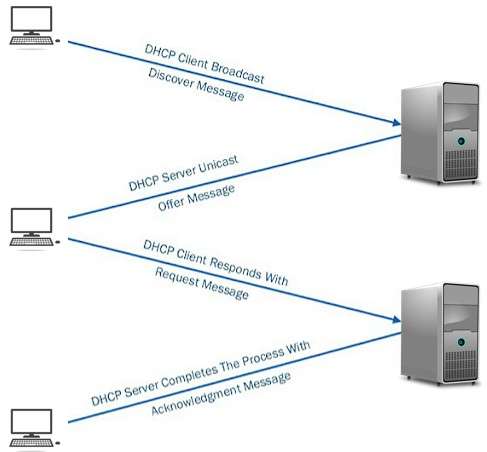
DHCP (Dynamic Host Configuration Protocol) is a network protocol that automatically assigns IP addresses and other network configuration details to devices connected to a network.
Step-by-Step Working of DHCP
Step 1: DHCP Discover
When a device connects to a network, it broadcasts a DHCP Discover message to find available DHCP servers.
Step 2: DHCP Offer
The DHCP server responds with a DHCP Offer message that contains an available IP address and configuration details.
Step 3: DHCP Request
The client selects one offer and sends a DHCP Request message to request the offered IP address.
Step 4: DHCP Acknowledgement (ACK)
The DHCP server sends a DHCP ACK message confirming the IP address assignment along with subnet mask, gateway, and DNS details.
Result
The client can now communicate on the network using the assigned IP address.
Example
When you connect your laptop to a Wi-Fi network, the router (DHCP server) automatically assigns an IP address to your laptop.

DHCP (Dynamic Host Configuration Protocol) হলো একটি network protocol যা স্বয়ংক্রিয়ভাবে device-কে IP address এবং অন্যান্য network configuration প্রদান করে।
DHCP কাজ করার ধাপসমূহ
Step 1: DHCP Discover
Network-এ যুক্ত হওয়ার সময় client একটি DHCP Discover message broadcast করে DHCP server খোঁজে।
Step 2: DHCP Offer
DHCP server একটি DHCP Offer পাঠায় যেখানে একটি available IP address ও configuration থাকে।
Step 3: DHCP Request
Client পছন্দের offer নির্বাচন করে DHCP Request message পাঠায়।
Step 4: DHCP Acknowledgement (ACK)
DHCP server DHCP ACK পাঠিয়ে IP address, subnet mask, gateway ও DNS নিশ্চিত করে।
ফলাফল
Client নির্ধারিত IP address ব্যবহার করে network-এ যোগাযোগ করতে পারে।
উদাহরণ
আপনি যখন Wi-Fi-তে laptop সংযোগ করেন, তখন router (DHCP server) স্বয়ংক্রিয়ভাবে IP address assign করে।

- 3Operating SystemBootingWrite about Boot Process.
The Boot Process is the sequence of steps a computer follows to start up after it is powered on or restarted. During this process, the hardware is initialized, the operating system is loaded into memory, and the computer becomes ready for use.
Steps of the Boot Process
1. Power On: The user turns on the computer, and the CPU begins executing instructions stored in the firmware (BIOS or UEFI).
2. POST (Power-On Self-Test): The BIOS/UEFI checks hardware components such as RAM, CPU, keyboard, storage devices, and other peripherals to ensure they are functioning correctly.
3. Boot Loader Execution: The Boot Loader (e.g., GRUB, Windows Boot Manager) is loaded from the bootable storage device.
4. Operating System Loading: The Boot Loader loads the Operating System Kernel into the main memory (RAM).
5. Kernel Initialization: The Kernel initializes device drivers, memory management, file systems, and other essential system services.
6. User Login: The operating system starts system services and displays the login screen or desktop, making the computer ready for use.
Boot Process হলো Computer চালু (Power On) বা Restart হওয়ার পর ধাপে ধাপে সম্পন্ন হওয়া একটি Process, যার মাধ্যমে Hardware Initialize হয়, Operating System (OS) Memory-তে Load হয় এবং Computer ব্যবহার উপযোগী হয়ে ওঠে।
Boot Process-এর ধাপসমূহ
১. Power On: User Computer চালু করলে CPU Firmware (BIOS বা UEFI)-এ সংরক্ষিত Instruction Execute করা শুরু করে।
২. POST (Power-On Self-Test): BIOS/UEFI RAM, CPU, Keyboard, Storage Device এবং অন্যান্য Hardware সঠিকভাবে কাজ করছে কিনা তা পরীক্ষা করে।
৩. Boot Loader Execution: Bootable Storage Device থেকে Boot Loader (যেমন: GRUB বা Windows Boot Manager) Load হয়।
৪. Operating System Loading: Boot Loader Operating System Kernel-কে RAM-এ Load করে।
৫. Kernel Initialization: Kernel Device Driver, Memory Management, File System এবং অন্যান্য System Service Initialize করে।
৬. User Login: Operating System প্রয়োজনীয় Service চালু করে Login Screen বা Desktop প্রদর্শন করে এবং Computer ব্যবহারের জন্য প্রস্তুত হয়।
- 4Operating SystemThreadingWhat hyper-threading is and its uses?
Hyper-Threading (HT) is a technology developed by Intel that allows a single physical CPU core to function as two logical (virtual) cores. This enables the processor to execute multiple threads simultaneously, improving CPU utilization and overall system performance.
How Does Hyper-Threading Work?
In Hyper-Threading, each physical CPU core appears as two logical processors to the Operating System. When one thread is waiting for data or resources, the CPU can execute another thread, reducing idle time and increasing efficiency.
Uses of Hyper-Threading
• Improves multitasking performance by running multiple threads simultaneously.
• Increases CPU utilization and overall system efficiency.
• Enhances the performance of multi-threaded applications such as video editing, 3D rendering, and software development.
• Improves virtualization by allowing more virtual machines to run efficiently.
• Reduces CPU idle time by executing another thread while one thread is waiting.
Hyper-Threading (HT) হলো Intel কর্তৃক উন্নয়নকৃত একটি Technology, যা একটি Physical CPU Core-কে দুটি Logical (Virtual) Core হিসেবে কাজ করার সুযোগ দেয়। এর ফলে Processor একই সময়ে একাধিক Thread Execute করতে পারে এবং System-এর Performance বৃদ্ধি পায়।
Hyper-Threading কীভাবে কাজ করে?
Hyper-Threading-এ প্রতিটি Physical Core, Operating System-এর কাছে দুটি Logical Processor হিসেবে দেখা যায়। যখন একটি Thread Data বা Resource-এর জন্য অপেক্ষা করে, তখন CPU অন্য একটি Thread Execute করে। এতে CPU-এর Idle Time কমে এবং Efficiency বৃদ্ধি পায়।
Hyper-Threading-এর ব্যবহার
• একই সময়ে একাধিক Thread চালিয়ে Multitasking Performance বৃদ্ধি করে।
• CPU-এর Resource আরও দক্ষতার সাথে ব্যবহার করে।
• Video Editing, 3D Rendering, Software Development এবং অন্যান্য Multi-threaded Application-এর Performance উন্নত করে।
• Virtualization-এ একাধিক Virtual Machine আরও দক্ষভাবে চালাতে সহায়তা করে।
• একটি Thread অপেক্ষমাণ থাকলে অন্য Thread Execute করে CPU-এর Idle Time কমায়।
- 5MiscellaneousWrite difference between SAS and SATA Drive
Difference Between SAS and SATA Drive
Feature SAS (Serial Attached SCSI) SATA (Serial ATA) Purpose Mainly used in Enterprise Servers and Data Centers. Mainly used in Personal Computers and Laptops. Performance Higher performance and faster data transfer. Moderate performance compared to SAS. Speed Up to 12 Gbps (or higher in newer versions). Up to 6 Gbps (SATA III). Reliability Very high reliability and designed for 24×7 operation. Good reliability for general-purpose use. Cost More expensive. Less expensive. Capacity Usually lower storage capacity but optimized for performance. Generally available in larger storage capacities. Duplex Mode Supports Full-Duplex communication. Supports Half-Duplex communication. Applications Servers, Enterprise Storage, Database Systems. Desktop PCs, Laptops, Personal Storage.
বৈশিষ্ট্য SAS (Serial Attached SCSI) SATA (Serial ATA) ব্যবহার মূলত Enterprise Server এবং Data Center-এ ব্যবহৃত হয়। মূলত Personal Computer এবং Laptop-এ ব্যবহৃত হয়। Performance উচ্চ Performance এবং দ্রুত Data Transfer প্রদান করে। SAS-এর তুলনায় কম Performance প্রদান করে। Speed সর্বোচ্চ 12 Gbps (বা নতুন Version-এ আরও বেশি)। সর্বোচ্চ 6 Gbps (SATA III)। Reliability খুবই নির্ভরযোগ্য এবং ২৪×৭ Operation-এর জন্য উপযোগী। সাধারণ ব্যবহারের জন্য যথেষ্ট নির্ভরযোগ্য। খরচ তুলনামূলকভাবে বেশি ব্যয়বহুল। তুলনামূলকভাবে কম ব্যয়বহুল। Storage Capacity সাধারণত কম Capacity হলেও Performance-কেন্দ্রিক। সাধারণত বেশি Storage Capacity পাওয়া যায়। Communication Mode Full-Duplex Communication সমর্থন করে। Half-Duplex Communication সমর্থন করে। Application Server, Enterprise Storage এবং Database System-এ ব্যবহৃত হয়। Desktop PC, Laptop এবং Personal Storage-এ ব্যবহৃত হয়।
- 6Data Center & VirtualizationSuppose you have to decorate a lab in one physical server with services website, mobile application, webmail etc. Which devices or services will you use to decorate the lab? How will this help you? And how will you get all services from one physical server?
To host multiple services such as a Website, Mobile Application, Webmail, Database, and other applications on a single physical server, I would use Virtualization Technology.
Devices and Services Required
• One high-performance Physical Server.
• Hypervisor (VMware ESXi, Microsoft Hyper-V, Proxmox VE, or KVM).
• Multiple Virtual Machines (VMs).
• Web Server (Apache or Nginx).
• Application Server.
• Database Server (MySQL or PostgreSQL).
• Mail Server (Postfix, Dovecot, or Microsoft Exchange).
• DNS Server.
• Firewall and Network Switch.
• Backup and Monitoring tools.How Can All Services Run on One Physical Server?
A Hypervisor is installed on the physical server to create multiple Virtual Machines (VMs). Each VM acts as an independent server with its own Operating System and resources. Different services are deployed on separate VMs, allowing all services to run simultaneously on a single physical server.
Example
• VM1 – Website Server (Apache/Nginx).
• VM2 – Database Server (MySQL/PostgreSQL).
• VM3 – Webmail Server (Postfix/Dovecot).
• VM4 – Mobile Application Backend Server.
• VM5 – DNS Server.Advantages
• Better utilization of hardware resources.
• Lower hardware and maintenance costs.
• Easy management and backup.
• Better security by isolating services in different Virtual Machines.
• High scalability and flexibility.
• Easy recovery in case of system failure.
প্রশ্ন: একটি Physical Server ব্যবহার করে Website, Mobile Application, Webmail ইত্যাদি Service সমন্বয়ে একটি Lab তৈরি করতে হবে। কোন Device বা Service ব্যবহার করবেন? এটি কীভাবে সাহায্য করবে? এবং কীভাবে একটি Physical Server থেকে সব Service চালানো সম্ভব?
উত্তর:
একটি Physical Server-এ Website, Mobile Application, Webmail, Database এবং অন্যান্য Service একসাথে চালানোর জন্য আমি Virtualization Technology ব্যবহার করব।
প্রয়োজনীয় Device এবং Service
• একটি উচ্চ ক্ষমতাসম্পন্ন Physical Server।
• একটি Hypervisor (VMware ESXi, Microsoft Hyper-V, Proxmox VE অথবা KVM)।
• একাধিক Virtual Machine (VM)।
• Web Server (Apache বা Nginx)।
• Application Server।
• Database Server (MySQL বা PostgreSQL)।
• Mail Server (Postfix, Dovecot বা Microsoft Exchange)।
• DNS Server।
• Firewall এবং Network Switch।
• Backup এবং Monitoring Tool।কীভাবে একটি Physical Server-এ সব Service চালানো সম্ভব?
প্রথমে Physical Server-এ একটি Hypervisor Install করা হয়। এরপর Hypervisor-এর মাধ্যমে একাধিক Virtual Machine (VM) তৈরি করা হয়। প্রতিটি VM একটি আলাদা Server-এর মতো কাজ করে এবং নিজস্ব Operating System ও Resource ব্যবহার করে। এরপর প্রতিটি VM-এ আলাদা Service Install করা হয়, ফলে একই Physical Server-এ একাধিক Service নিরাপদভাবে এবং স্বাধীনভাবে চলতে পারে।
উদাহরণ
• VM1 – Website Server (Apache/Nginx)।
• VM2 – Database Server (MySQL/PostgreSQL)।
• VM3 – Webmail Server (Postfix/Dovecot)।
• VM4 – Mobile Application Backend Server।
• VM5 – DNS Server।সুবিধা
• Hardware Resource-এর সর্বোত্তম ব্যবহার নিশ্চিত করে।
• Hardware ও Maintenance Cost কমায়।
• Backup এবং Management সহজ হয়।
• প্রতিটি Service আলাদা Virtual Machine-এ থাকায় Security বৃদ্ধি পায়।
• প্রয়োজন অনুযায়ী সহজে নতুন Service যোগ করা যায় (Scalability)।
• কোনো একটি VM সমস্যায় পড়লেও অন্যান্য Service সচল থাকে।
Five MCQ: 2 × 5 = 10
1. Which among the following is the fastest memory in a computer that holds information?
(a) Register (b) Cache
(c) Main Memory
(d) RAM
Answer: (a) Register
Explanation:
Information is moved from memory to registers and then passed to the ALU for performing arithmetic and logical operations. Registers are the fastest memory inside a computer.
2. Which of the following is temporary storage used to hold data that is used for arithmetic and logical operations and storing its results?
(a) ALU
(b) Program Counter (PC)
(c) Accumulator
(d) Instruction Register (IR)
Answer: (c) Accumulator
Explanation:
The ALU contains a set of general-purpose registers. The Accumulator is used to temporarily store data and the results of arithmetic and logical operations.
3. A hard disk is divided into tracks which are further subdivided into ______.
(a) Vectors
(b) Clusters
(c) Sectors
(d) None of the above
Answer: (c) Sectors
4. The Expansion cards are inserted into ______.
(a) Slots of CPU (Motherboard Expansion Slots)
(b) Hard Disk of CPU
(c) Peripheral Devices
(d) None of the above
Answer: (a) Slots of CPU
5. A system has two IDE hard drives that are each divided into primary and extended partitions. Which drive letter is assigned to the primary partition of the second drive?
(a) C
(b) D
(c) E
(d) F
Answer: (b) D
Pubali Bank, Hardware Engineer, 2023
- 1Computer NetworkIP AddressWhat is IP address? Explain the necessity of IP address in network?
IP Address
An IP address (Internet Protocol address) is a unique numerical identifier assigned to each device connected to a network. It is used to identify devices and enable communication between them over a network or the Internet.
Necessity of IP Address in a Network
An IP address uniquely identifies each device in a network, ensuring that data reaches the correct destination.
It helps in identifying the source and destination of data packets during communication.
Routers use IP addresses to determine the best path for forwarding data across different networks.
IP addresses enable devices to access network resources such as servers, printers, and the Internet.
Without IP addresses, communication between devices in a network would not be possible.
Example
When a computer requests a webpage, its IP address is used by the web server to send the requested data back to the correct computer.
IP Address
IP address (Internet Protocol address) হলো একটি unique numerical identifier যা network-এ সংযুক্ত প্রতিটি device-কে প্রদান করা হয়, যাতে device-গুলোকে শনাক্ত করা যায় এবং তাদের মধ্যে data আদান-প্রদান সম্ভব হয়।
Network-এ IP Address-এর প্রয়োজনীয়তা
IP address প্রতিটি device-কে আলাদাভাবে চিহ্নিত করে, যাতে data সঠিক destination-এ পৌঁছায়।
Data communication-এর সময় source ও destination নির্ধারণ করতে IP address ব্যবহৃত হয়।
Router IP address ব্যবহার করে বিভিন্ন network-এর মধ্যে data পাঠানোর সঠিক পথ নির্বাচন করে।
IP address device-কে server, printer ও Internet-এর মতো resource access করতে সাহায্য করে।
IP address না থাকলে network-এ device-এর মধ্যে যোগাযোগ সম্ভব নয়।
উদাহরণ
আপনি যখন কোনো website খুলেন, তখন web server আপনার device-এর IP address ব্যবহার করে সঠিকভাবে data পাঠায়।
- 2Data Center & VirtualizationRAIDExplain the purpose of RAID.
Purpose of RAID
RAID (Redundant Array of Independent Disks) is a storage technology that combines multiple physical hard disks into a single logical unit to improve performance, data reliability, or both.
Main Purposes of RAID
1. Data Redundancy (Fault Tolerance)
RAID protects data from disk failure by storing duplicate or parity information across multiple disks, ensuring data is not lost if one disk fails.
2. Improved Performance
RAID can increase read and write speed by distributing data across multiple disks, allowing parallel data access.
3. High Availability
RAID ensures continuous system operation even during disk failure, which is critical for servers and enterprise systems.
4. Efficient Storage Management
RAID presents multiple disks as a single logical drive, simplifying storage management.
Example
A database server uses RAID 1 or RAID 5 so that if one hard disk fails, the system continues running without data loss.
RAID-এর উদ্দেশ্য
RAID (Redundant Array of Independent Disks) হলো একটি storage technology যেখানে একাধিক physical hard disk একত্রে ব্যবহার করে performance বৃদ্ধি, data protection এবং reliability নিশ্চিত করা হয়।
RAID ব্যবহারের প্রধান উদ্দেশ্য
১. Data Redundancy (Fault Tolerance)
RAID disk failure-এর ক্ষেত্রে data নিরাপদ রাখে, কারণ data বা parity information একাধিক disk-এ সংরক্ষণ করা হয়।
২. Performance বৃদ্ধি
একাধিক disk ব্যবহার করে RAID read ও write speed বৃদ্ধি করে, কারণ data একসাথে বিভিন্ন disk থেকে access করা যায়।
৩. High Availability
Disk failure হলেও system চালু থাকে, যা server ও enterprise system-এর জন্য অত্যন্ত গুরুত্বপূর্ণ।
৪. সহজ Storage Management
একাধিক disk-কে একটি logical drive হিসেবে দেখায়, ফলে storage পরিচালনা সহজ হয়।
উদাহরণ
একটি database server-এ RAID 1 বা RAID 5 ব্যবহার করা হয়, যাতে কোনো একটি hard disk নষ্ট হলেও data হারায় না এবং system চলমান থাকে।
- 3Computer NetworkProtocolExplain how do DHCP work?
How DHCP Works
DHCP (Dynamic Host Configuration Protocol) is a network protocol that automatically assigns IP addresses and other network configuration details to devices connected to a network.
Step-by-Step Working of DHCP
Step 1: DHCP Discover
When a device connects to a network, it broadcasts a DHCP Discover message to find available DHCP servers.
Step 2: DHCP Offer
The DHCP server responds with a DHCP Offer message that contains an available IP address and configuration details.
Step 3: DHCP Request
The client selects one offer and sends a DHCP Request message to request the offered IP address.
Step 4: DHCP Acknowledgement (ACK)
The DHCP server sends a DHCP ACK message confirming the IP address assignment along with subnet mask, gateway, and DNS details.
Result
The client can now communicate on the network using the assigned IP address.
Example
When you connect your laptop to a Wi-Fi network, the router (DHCP server) automatically assigns an IP address to your laptop.

DHCP কীভাবে কাজ করে
DHCP (Dynamic Host Configuration Protocol) হলো একটি network protocol যা স্বয়ংক্রিয়ভাবে device-কে IP address এবং অন্যান্য network configuration প্রদান করে।
DHCP কাজ করার ধাপসমূহ
Step 1: DHCP Discover
Network-এ যুক্ত হওয়ার সময় client একটি DHCP Discover message broadcast করে DHCP server খোঁজে।
Step 2: DHCP Offer
DHCP server একটি DHCP Offer পাঠায় যেখানে একটি available IP address ও configuration থাকে।
Step 3: DHCP Request
Client পছন্দের offer নির্বাচন করে DHCP Request message পাঠায়।
Step 4: DHCP Acknowledgement (ACK)
DHCP server DHCP ACK পাঠিয়ে IP address, subnet mask, gateway ও DNS নিশ্চিত করে।
ফলাফল
Client নির্ধারিত IP address ব্যবহার করে network-এ যোগাযোগ করতে পারে।
উদাহরণ
আপনি যখন Wi-Fi-তে laptop সংযোগ করেন, তখন router (DHCP server) স্বয়ংক্রিয়ভাবে IP address assign করে।

- 4Operating SystemBootingDescribe the booting process in windows system.
Booting Process in Windows System
The booting process in a Windows system is the sequence of steps that starts when the computer is powered on and ends when the Windows operating system is fully loaded and ready for use.
Step 1: Power On and POST
When the system is powered on, BIOS or UEFI performs POST (Power-On Self Test) to check hardware components such as CPU, RAM, keyboard, and storage devices.
Step 2: BIOS/UEFI Initialization
After POST, BIOS or UEFI initializes hardware components and identifies the bootable device based on the boot order configuration.
Step 3: Boot Loader Execution
The boot loader (Windows Boot Manager – bootmgr) is loaded from the boot device, which locates and prepares the Windows operating system to start.
Step 4: Windows Kernel Loading
The Windows kernel (ntoskrnl.exe) is loaded into memory along with essential drivers required for system operation.
Step 5: System Initialization
Windows initializes system services, device drivers, and registry settings needed for system functionality.
Step 6: User Logon
The Windows logon screen appears, allowing the user to enter credentials and access the system.
Step 7: Desktop Ready
After successful login, the Windows desktop is displayed and the system is ready for use.
Windows System-এ Booting Process
Windows system-এর booting process হলো computer চালু হওয়ার পর থেকে Windows operating system সম্পূর্ণভাবে load হওয়া পর্যন্ত ধাপে ধাপে সম্পন্ন হওয়া প্রক্রিয়া।
Step 1: Power On ও POST
System চালু হলে BIOS বা UEFI POST (Power-On Self Test) চালায়, যেখানে CPU, RAM, keyboard ও storage device পরীক্ষা করা হয়।
Step 2: BIOS/UEFI Initialization
POST শেষ হলে BIOS বা UEFI hardware initialize করে এবং boot order অনুযায়ী bootable device নির্বাচন করে।
Step 3: Boot Loader চালু
Boot device থেকে Windows Boot Manager (bootmgr) load হয়, যা Windows চালু করার প্রস্তুতি নেয়।
Step 4: Windows Kernel Load
Windows kernel (ntoskrnl.exe) এবং প্রয়োজনীয় system driver memory-তে load হয়।
Step 5: System Initialization
Windows system service, device driver এবং registry setting initialize করে।
Step 6: User Logon
User-এর সামনে Windows logon screen আসে এবং credential দেওয়ার সুযোগ দেয়।
Step 7: Desktop Ready
Login সফল হলে Windows desktop প্রদর্শিত হয় এবং system ব্যবহারযোগ্য হয়।
- 5Data StructureDifference between SAS and SATA. Which one is best server?
Difference between SAS and SATA
Aspect SAS (Serial Attached SCSI) SATA (Serial ATA) Purpose Designed for enterprise and server environments Designed for desktops and personal computers Speed Higher data transfer rate (up to 12 Gbps) Lower data transfer rate (up to 6 Gbps) Reliability Highly reliable, supports continuous 24×7 operation Less reliable for continuous heavy workloads Error Handling Advanced error detection and correction Basic error handling Cost More expensive Cheaper Usage Servers, data centers, mission-critical systems Home PCs, laptops, basic storage Which One is Best for Server?
SAS is the best choice for servers because it offers higher performance, better reliability, advanced error handling, and is designed for continuous operation in enterprise environments.
SATA is suitable for servers only when cost is a major concern and performance demand is low.
SAS ও SATA-এর পার্থক্য
বিষয় SAS (Serial Attached SCSI) SATA (Serial ATA) উদ্দেশ্য Enterprise ও server environment-এর জন্য তৈরি Desktop ও personal computer-এর জন্য তৈরি Speed উচ্চ data transfer rate (১২ Gbps পর্যন্ত) কম data transfer rate (৬ Gbps পর্যন্ত) Reliability ২৪×৭ continuous operation-এর জন্য অত্যন্ত নির্ভরযোগ্য Heavy workload-এর জন্য কম নির্ভরযোগ্য Error Handling Advanced error detection ও correction Basic error handling খরচ বেশি ব্যয়বহুল কম খরচ ব্যবহার Server, data center ও critical system Home PC, laptop ও সাধারণ storage Server-এর জন্য কোনটি ভালো?
Server-এর জন্য SAS সবচেয়ে ভালো, কারণ এটি উচ্চ performance, বেশি reliability, উন্নত error handling এবং ২৪×৭ operation সমর্থন করে.
Cost কমানোর প্রয়োজন হলে এবং workload কম হলে server-এ SATA ব্যবহার করা যেতে পারে.
- 6Linux CommandLinux Command in ownership and group permission.
Linux Ownership and Group Permissions
1.
chown(Change Ownership)The
chowncommand is used to change the owner and group of files or directories.Syntax:
chown [owner]:[group] [file/directory]Examples:
- Change the owner of a file:
chown username file.txt - Change both owner and group of a file:
chown username:groupname file.txt - Recursively change ownership for all files and subdirectories:
chown -R username:groupname /path/to/directory
2.
chgrp(Change Group Ownership)The
chgrpcommand changes only the group ownership of a file or directory.Syntax:
chgrp [group] [file/directory]Examples:
- Change the group of a file:
chgrp groupname file.txt - Recursively change the group for all files in a directory:
chgrp -R groupname /path/to/directory
- Change the owner of a file:
- 7Data Center & VirtualizationVirtualizationHow virtualization help physical server.
How Virtualization Helps a Physical Server
Virtualization allows a single physical server to run multiple virtual machines (VMs), each acting as an independent server with its own operating system and applications.
- Better Resource Utilization: CPU, memory, and storage are efficiently shared among multiple VMs.
- Server Consolidation: Multiple servers can be combined into one physical server, reducing hardware costs.
- Improved Scalability: Virtual machines can be created, resized, or removed easily as demand changes.
- High Availability: VMs can be migrated between physical servers, minimizing downtime.
- Isolation: Each VM is isolated, so failure in one does not affect others.
- Reduced Power and Space: Fewer physical servers reduce energy consumption and data center space.
Virtualization কীভাবে Physical Server-কে সাহায্য করে
Virtualization একটি physical server-এ একাধিক virtual machine (VM) চালাতে সাহায্য করে, যেখানে প্রতিটি VM আলাদা server-এর মতো কাজ করে।
- Better Resource Utilization: CPU, memory ও storage দক্ষভাবে ভাগ করে ব্যবহার করা যায়।
- Server Consolidation: একাধিক server একটি physical server-এ একত্রিত করা যায়, ফলে খরচ কমে।
- Improved Scalability: প্রয়োজন অনুযায়ী VM সহজে তৈরি বা পরিবর্তন করা যায়।
- High Availability: VM এক server থেকে অন্য server-এ স্থানান্তর করা যায়, downtime কমে।
- Isolation: একটি VM-এর সমস্যা অন্য VM-কে প্রভাবিত করে না।
- Power ও Space সাশ্রয়: কম physical server ব্যবহারে বিদ্যুৎ ও জায়গা বাঁচে।